

Appearance
System Settings
After completing the installation, configure your system settings to customize your Mentor LMS platform.
Accessing System Settings
- Log in to your admin dashboard
- Navigate to Settings in the sidebar menu
- Select System from the dropdown options
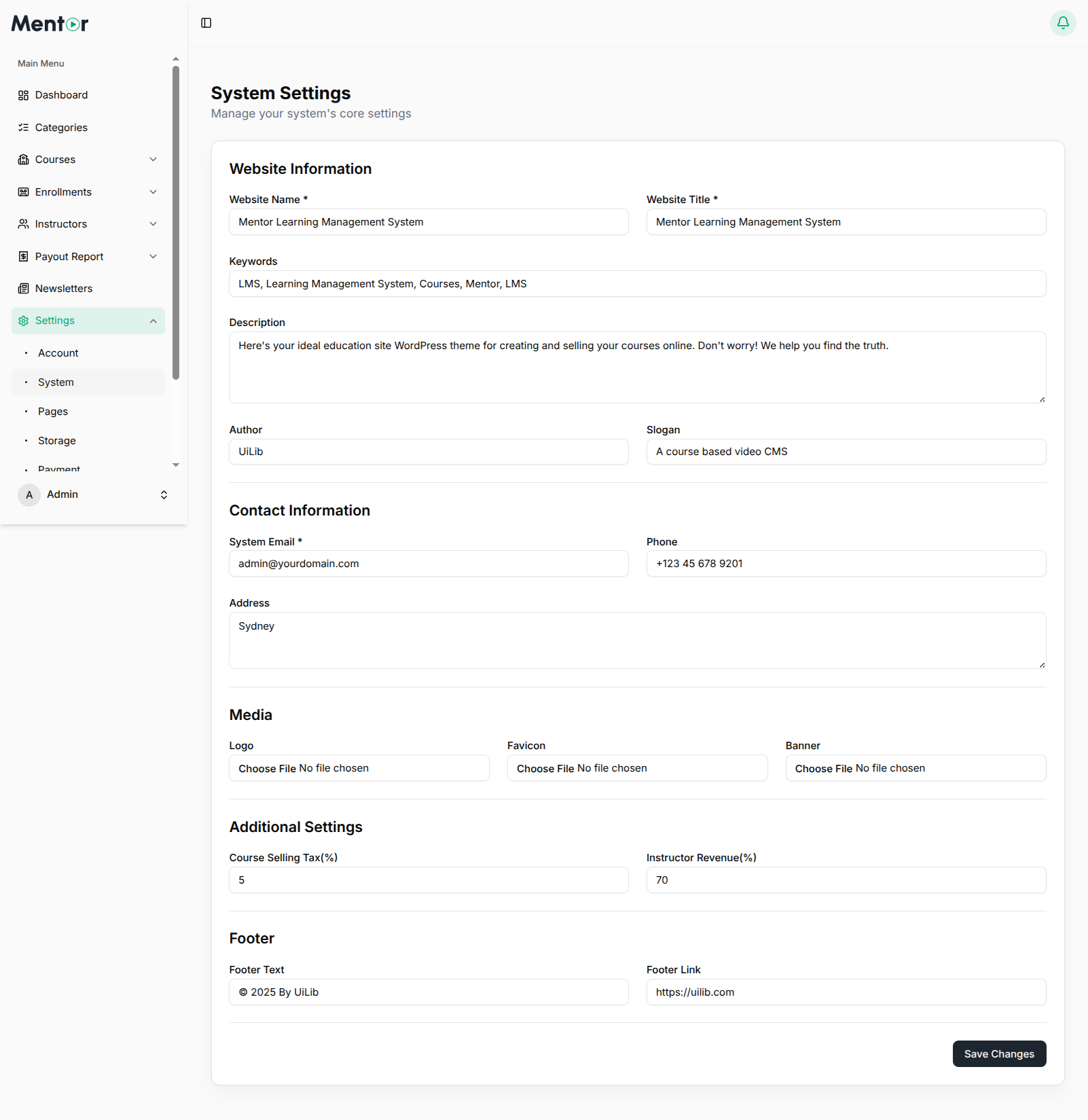
Configuration Tabs
The System Settings page is organized into multiple tabs:
- Website: Core website information and branding
- Navbar: Navigation bar configuration
- Footer: Footer section settings
- Style: Visual appearance and theme settings
Website Information
Basic Information
- Website Name: The name of your LMS platform displayed across the application
- Website Title: Browser title and page title for SEO
- Keywords: Comma-separated keywords for search engine optimization (e.g., "LMS, Learning Management System, Courses, Mentor, LMS")
- Description: Detailed description of your platform for SEO and marketing purposes
- Author: Platform author or organization name
- Slogan: A catchy tagline for your platform (e.g., "A course based video CMS")
Contact Information
- System Email: Primary email address for system notifications and user inquiries
- Phone: Contact phone number for support
Media Assets
- Logo Dark: Logo displayed when using dark theme or dark backgrounds
- Logo Light: Logo displayed when using light theme or light backgrounds
- Favicon: Small icon displayed in browser tabs (recommended: 32px × 32px, ICO or PNG format)
- Banner: Hero banner or promotional image for homepage
Additional Settings
Website Direction
Controls the text direction of your website:
- None: Uses default direction based on language
- LTR (Left-to-Right): For languages like English, Spanish, French
- RTL (Right-to-Left): For languages like Arabic, Hebrew, Urdu
Default Theme
Sets the default appearance theme for visitors:
- System: Automatically matches visitor's system preference (light or dark mode)
- Light: Always displays light theme by default
- Dark: Always displays dark theme by default
Language Selector
Controls the visibility of the language selection dropdown:
- Show: Displays language selector for users to switch languages
- Hide: Hides the language selector from the interface
Course Selling Currency
Select the currency for all course pricing throughout the platform:
- Default: USD (US Dollar)
- This currency will be displayed across the entire website for course prices
- Affects course listings, checkout, and payment processing
Course Selling Tax (%)
Set the tax percentage applied to course purchases:
- Enter a numeric value (e.g., 5 for 5% tax)
- This tax will be automatically calculated and added during checkout
- Applied to all course purchases platform-wide
Instructor Revenue (%)
Configure the revenue share percentage for instructors:
- Enter a numeric value (e.g., 70 for 70% instructor revenue)
- Determines how much of each sale goes to the course instructor
- The remaining percentage is the admin/platform commission
- Example: If set to 70%, instructor receives 70% and admin/platform keeps 30%