

Appearance
App Maintenance
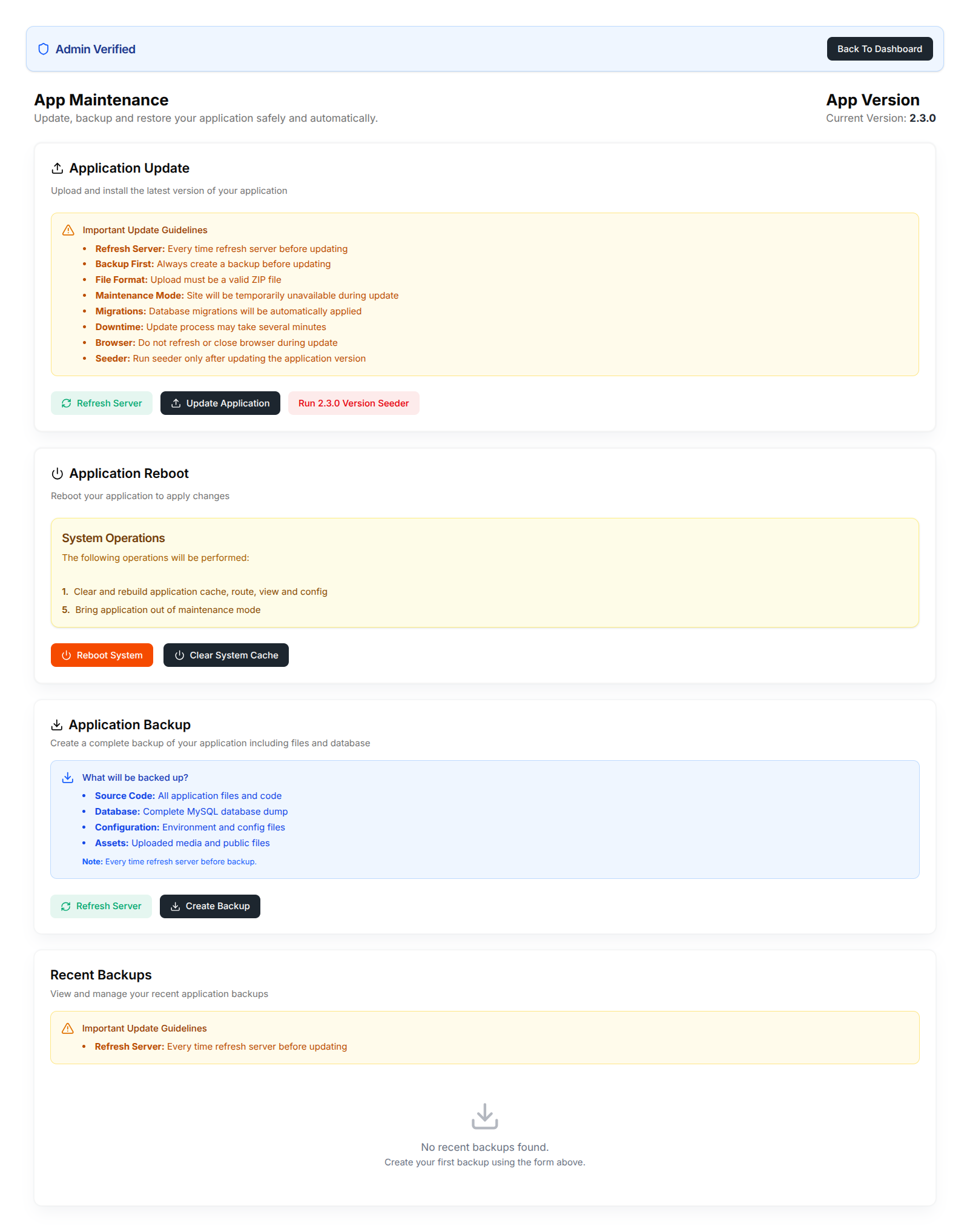
The App Maintenance panel allows you to update, backup, and restore your Mentor LMS application safely and automatically.
Accessing App Maintenance
- Log in to your admin dashboard
- Navigate to Maintenance in the sidebar menu
- Select App Maintenance
Admin Verification
The maintenance panel is only accessible to verified administrators to ensure system security.
Current Version
The top-right corner displays your current application version (e.g., Current Version: 2.3.0). Always check this before performing updates.
Application Update
Upload and install the latest version of your application to access new features and security improvements.
Important Update Guidelines
Before updating your application, please follow these critical steps:
Pre-Update Requirements
- Refresh Server: Every time you refresh the server before updating, click the
Refresh Serverbutton located the left side ofUpdate Applicationbutton - Backup First: Always create a backup before updating (see Application Backup section below)
Update Process
- Click the
Update Applicationbutton (black button with download icon) - Select the latest version ZIP file, the update process will start automatically.
- Update process may take several minutes. Do not refresh or close browser during update.
Post-Update: Version Seeder
After updating your application, you must run the version seeder to ensure all necessary default data and configurations are properly refreshed. In this case you have to follow bellow steps.
- Click the
Run Version Seederbutton only once after each version update - The seeder button is located at the right side of the
Update Applicationbutton - The button displays the current version number (e.g., "Run 2.3.0 Version Seeder")
Example Workflow:
Scenario 1: If we release v4.0.0
- Update your website to v4.0.0
- Click the Run 4.0.0 Version Seeder button once
- Wait for completion
Scenario 2: When we release v5.0.0
- Update your website to v5.0.0
- Click the Run 5.0.0 Version Seeder button once
- Wait for completion
Seeder Execution
Never click the seeder button multiple times for the same version. Running the seeder more than once may cause data duplication or configuration conflicts.
Application Reboot
Reboot your application to apply changes and clear system cache.
System Operations
When you reboot the system, the following operations will be performed:
- Clear and rebuild application cache, route, view and config
- Bring application out of maintenance mode
How to Reboot
- Click the Reboot System button (red button with power icon)
- Alternatively, click Clear System Cache button (black button) to only clear cache without full reboot
- Wait for the operation to complete
- Your application will be refreshed and ready to use
When to Reboot
- After making configuration changes
- When experiencing performance issues
- After installing plugins or extensions
- When cache-related issues occur
- After environment variable changes
Cache Clearing
If you only need to clear cache without a full reboot, use the Clear System Cache button instead of Reboot System.
Application Backup
Create a complete backup of your application including files and database to protect your data.
What Will Be Backed Up?
The backup process includes:
- Source Code: All application files and code
- Database: Complete MySQL database dump
- Assets: Uploaded media in local storage and public files
Note
Every time you must refresh the server before creating a backup to ensure all latest changes are included.
How to Create a Backup
- Click the Refresh Server button (green button with refresh icon)
- Wait for the server refresh to complete
- Click the Create Backup button (black button with download icon)
- Wait for the backup process to complete
- The backup will be saved and listed in the Recent Backups section
Recent Backups
View and manage your recent application backups.
Backup List
This section displays all your previously created backups with:
- Backup creation date and time
- Backup file size
- Download and restore options
Refresh Before Restore
Refresh Server: Every time you refresh the server before uploading/restoring a backup to prevent conflicts and ensure smooth restoration.
Managing Backups
When you have backups available, you can:
- Download: Download backup files to your local computer for safekeeping
- Restore: Restore your application to a previous backup state
- Delete: Remove old backups to free up server space
Restoration Process
To restore from a backup:
- Click the Refresh Server button first
- Locate the backup you want to restore in the Recent Backups list
- Click the Restore button for that backup
- Wait for the restoration to complete
- Your application will be restored to the backup state
Restoration Warning
Restoring a backup will overwrite your current application files and database. Make sure to create a current backup before restoring an older one.